


Products
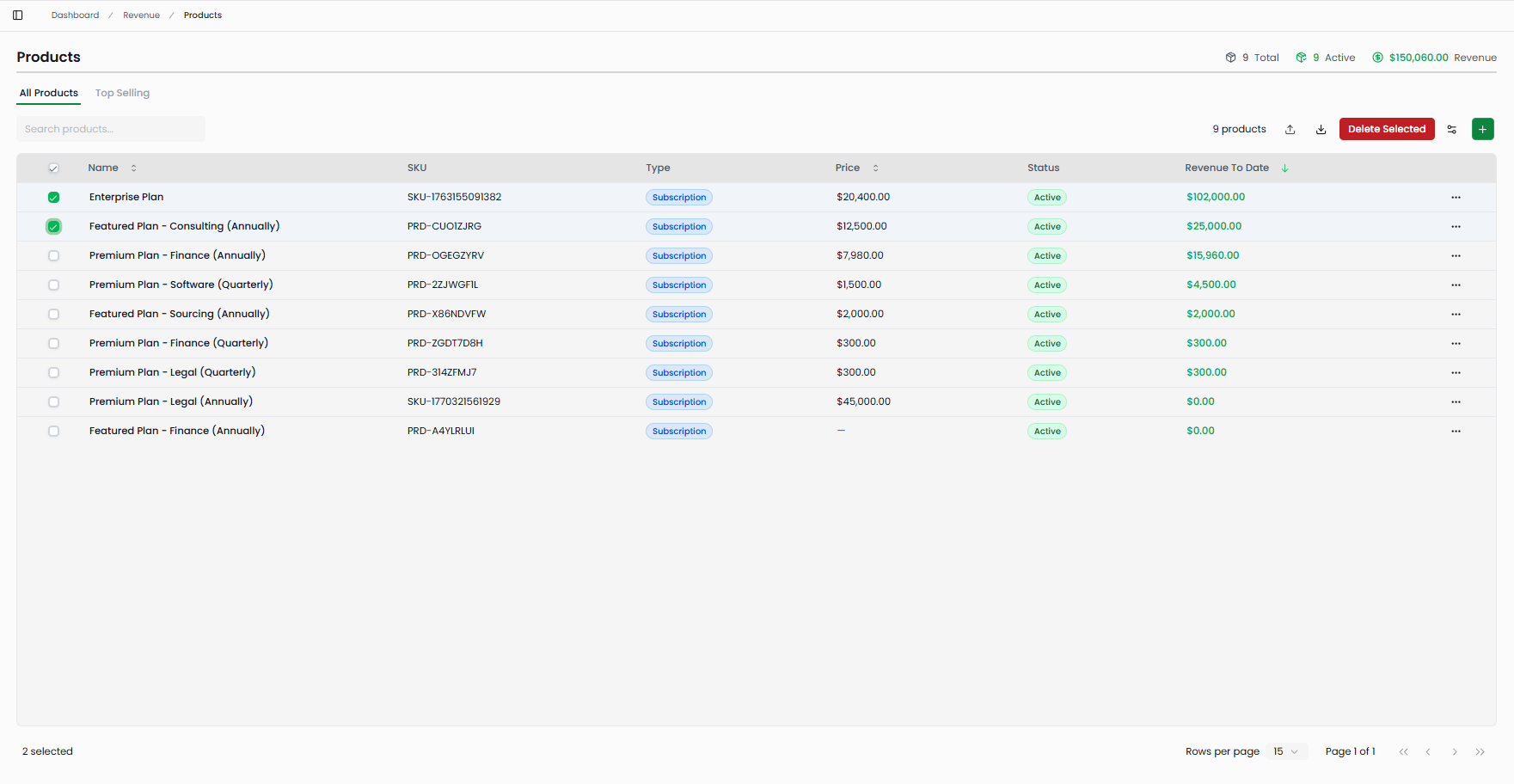
The Products page is your catalog of everything your business sells. Each product you create here can be linked to subscriptions, invoices, and customer records, giving Futureproof the context it needs to report revenue accurately by product line. Rather than working with raw transaction totals, you can see exactly which products are generating revenue and how much each has earned to date.
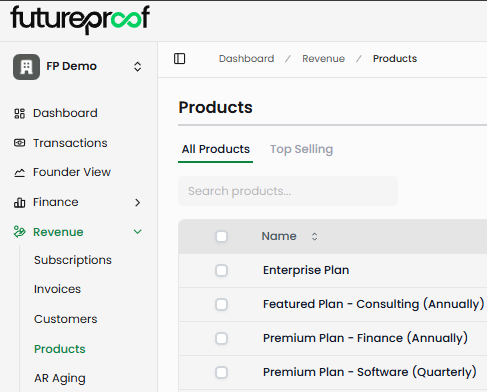
Navigate to: Revenue in the left sidebar, then select Products.
Page Summary
Three summary figures appear in the top-right corner of the page. Total shows the count of all products in your catalog regardless of status. Active shows how many of those products are currently marked active. Revenue shows cumulative all-time revenue attributed to your products across invoices and subscriptions — there is no date filter on this page, so this number always reflects your full history.

All Products and Top Selling
The page opens on the All Products tab, which shows your complete catalog. The Top Selling tab surfaces the products with the highest number of purchases, giving you a quick view of your most frequently sold products without sorting the full list manually. Both tabs share the same columns and toolbar actions.
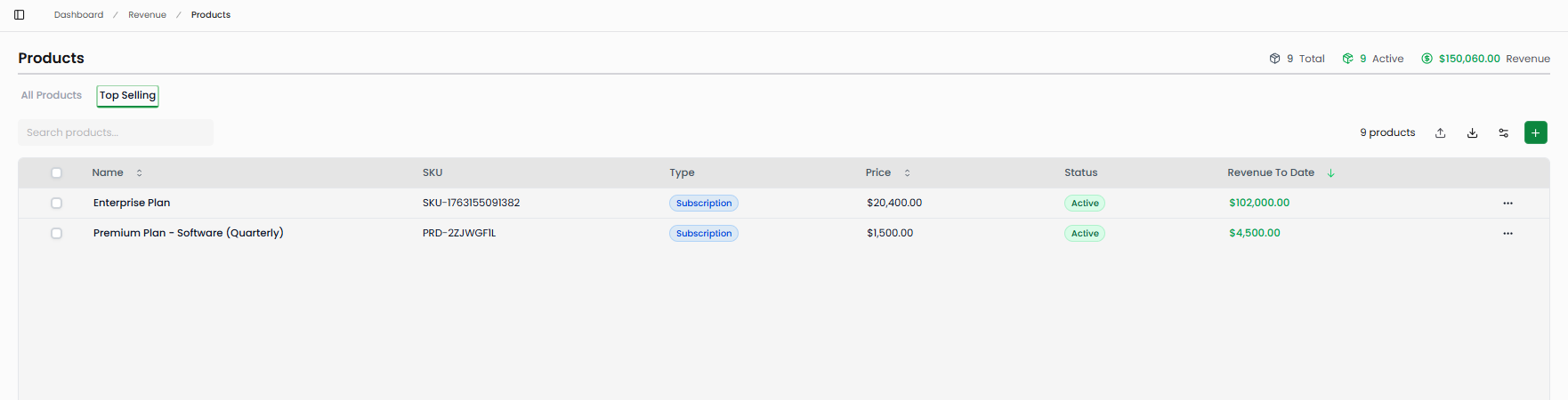
Product Table
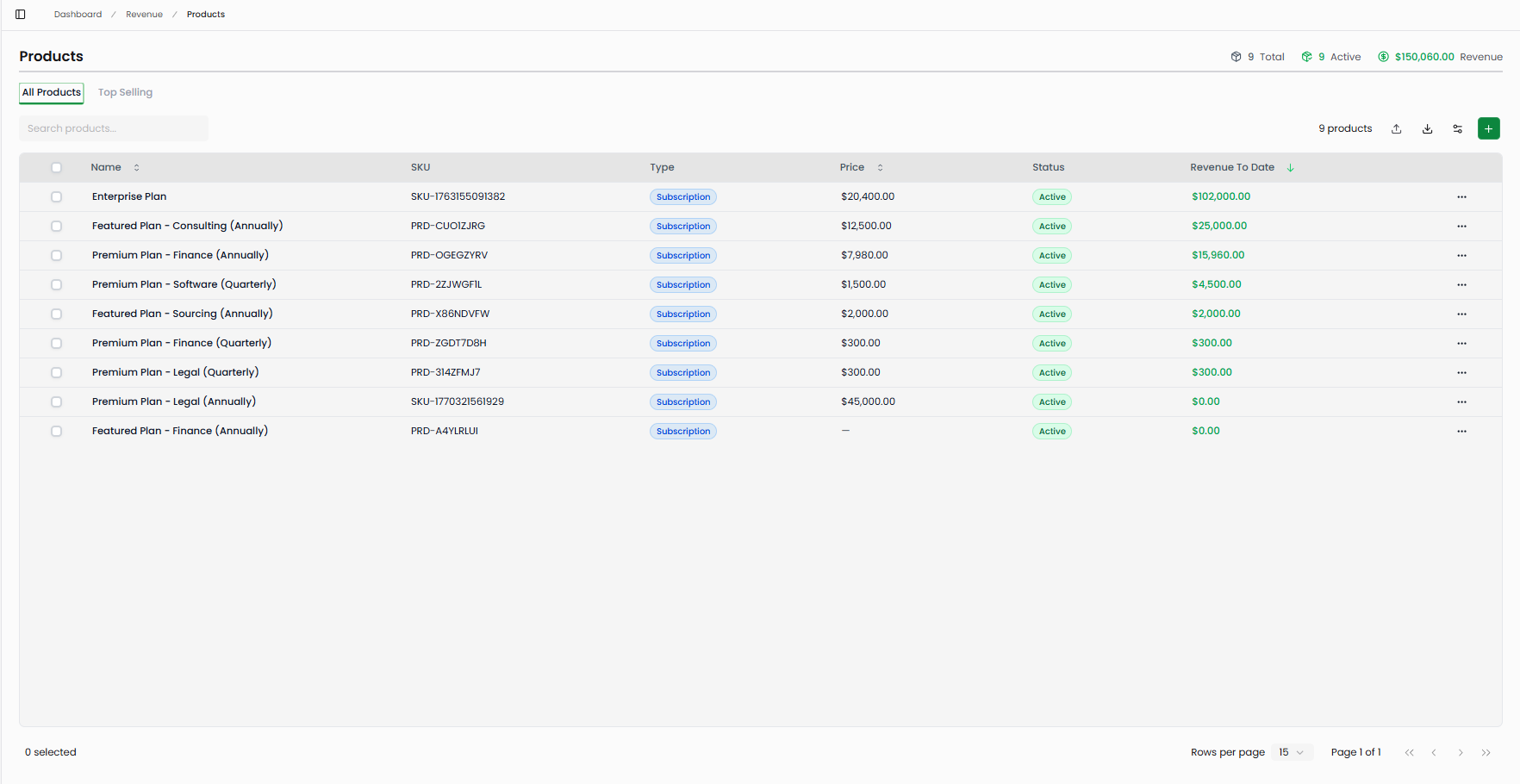
Each row in the table represents one product. The columns give you the key details at a glance.
Name
The display name of the product as it appears on invoices and subscriptions. Names should be descriptive enough for customers and your team to recognize without needing the SKU.
SKU
The stock keeping unit — a unique identifier for each product. If you leave this blank when creating a product, Futureproof auto-generates one in the format PRD-XXXXXXXX. SKUs must be unique; the system will reject a new product if you enter a SKU that already exists in your catalog.
Type
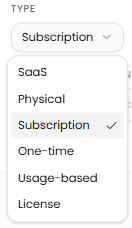
The product classification. Available types are SaaS, Physical, Subscription, One-time, Usage-based, and License. Type is a label that helps you organize your catalog and filter reports by product category. Each product has exactly one type.
Price
The base price of the product. A price of $0.00 or a dash (—) indicates the product either has no price configured yet or is genuinely free. Price here represents the standard selling price, not necessarily what any specific customer paid — actual invoice amounts may differ.
Status
Active products appear in green and are available to attach to invoices and subscriptions. Status helps you distinguish live products from ones that are no longer in use without deleting them from your history.
Revenue To Date
The cumulative all-time revenue attributed to this product across all invoices and subscriptions. A value of $0.00 means the product exists in your catalog but has not yet been associated with any paid invoices. This figure updates as new invoices are created or payments are recorded.
Why it matters: Revenue by product tells you which offerings are actually driving your business. When Enterprise Plan shows $102,000 against Featured Plan - Finance Annually showing $0.00, that gap signals where to focus sales effort, where pricing may need adjustment, and which products customers actually value.
Adding a Product
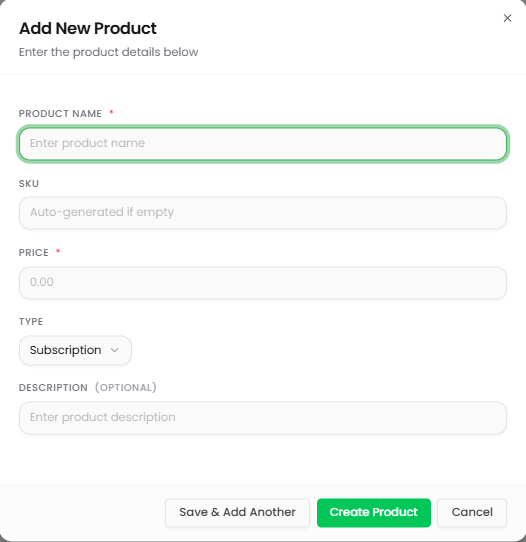
Click the green + button in the top-right toolbar to open the Add New Product modal. Fill in the following fields:
Product Name (required): The display name for this product. This appears on invoices and in customer-facing documents.
SKU: Enter your own identifier or leave blank to have Futureproof generate one automatically.
Price (required): Enter the base price. Use 0.00 for free products.
Type: Select from SaaS, Physical, Subscription, One-time, Usage-based, or License.
Description (optional): A brief description visible in product details.
Click Create Product to save, or Save & Add Another to save and immediately open a fresh blank form for your next product.
Editing and Deleting Products
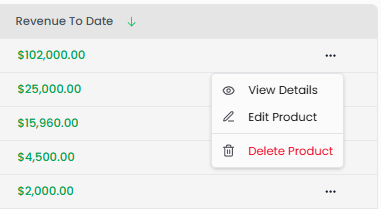
Click the three-dot menu (···) at the end of any product row to access product actions. View Details opens a read-only summary of the product. Edit Product opens the same form used during creation, where you can update the name, SKU, price, type, or description. Delete Product permanently removes the product from your catalog.
Why it matters: Use Edit rather than Delete when a product's details change but its revenue history should be preserved. Deleting a product is permanent — if historical invoice or subscription data references it, verify with your team how deletion affects those records before proceeding.
Exporting Products
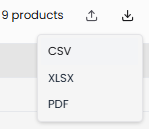
Click the download icon in the toolbar to export your product list. Choose CSV for a spreadsheet-compatible file, XLSX for Excel format, or PDF for a formatted Products Report that includes the key metrics summary and full product table. Exports reflect any active search filter, so if you have filtered to specific products, only those rows are included in the export.
Column Customization
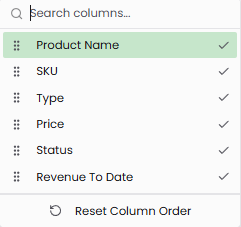
Click the column settings icon in the toolbar to control which columns appear in the product table. Check or uncheck Product Name, SKU, Type, Price, Status, and Revenue To Date to show or hide them. Drag rows in the panel to reorder columns. Click Reset Column Order to return to the default layout.
Bulk Actions
Select multiple products using the checkboxes on the left of each row. Once one or more products are selected, you can bulk delete all selected products or export only the selected rows as CSV, XLSX, or PDF. The row count at the bottom of the page shows how many products are currently selected.
Searching Products
Use the search bar at the top of the table to filter products by name. Results update as you type. There is no additional filter panel — search is the primary way to narrow the product list when your catalog grows beyond what fits on one page.