


Customers
The Customers page is your central record of every person or business you've invoiced or sold to. From a single view you can see how much each customer owes, their payment history, their monthly recurring revenue contribution, and the products they've purchased. Rather than piecing this together from individual invoices, Customers consolidates everything into one place so you always know the state of your receivables and your most valuable relationships.
Accessing the Customers Page
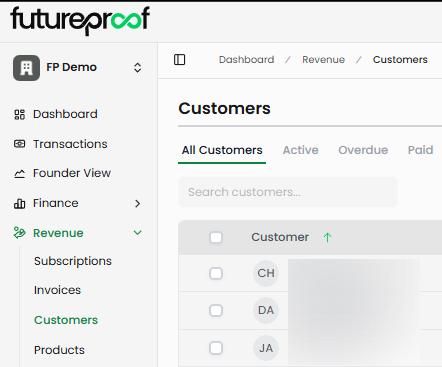
In the left sidebar, click Revenue, then select Customers.
Summary Statistics
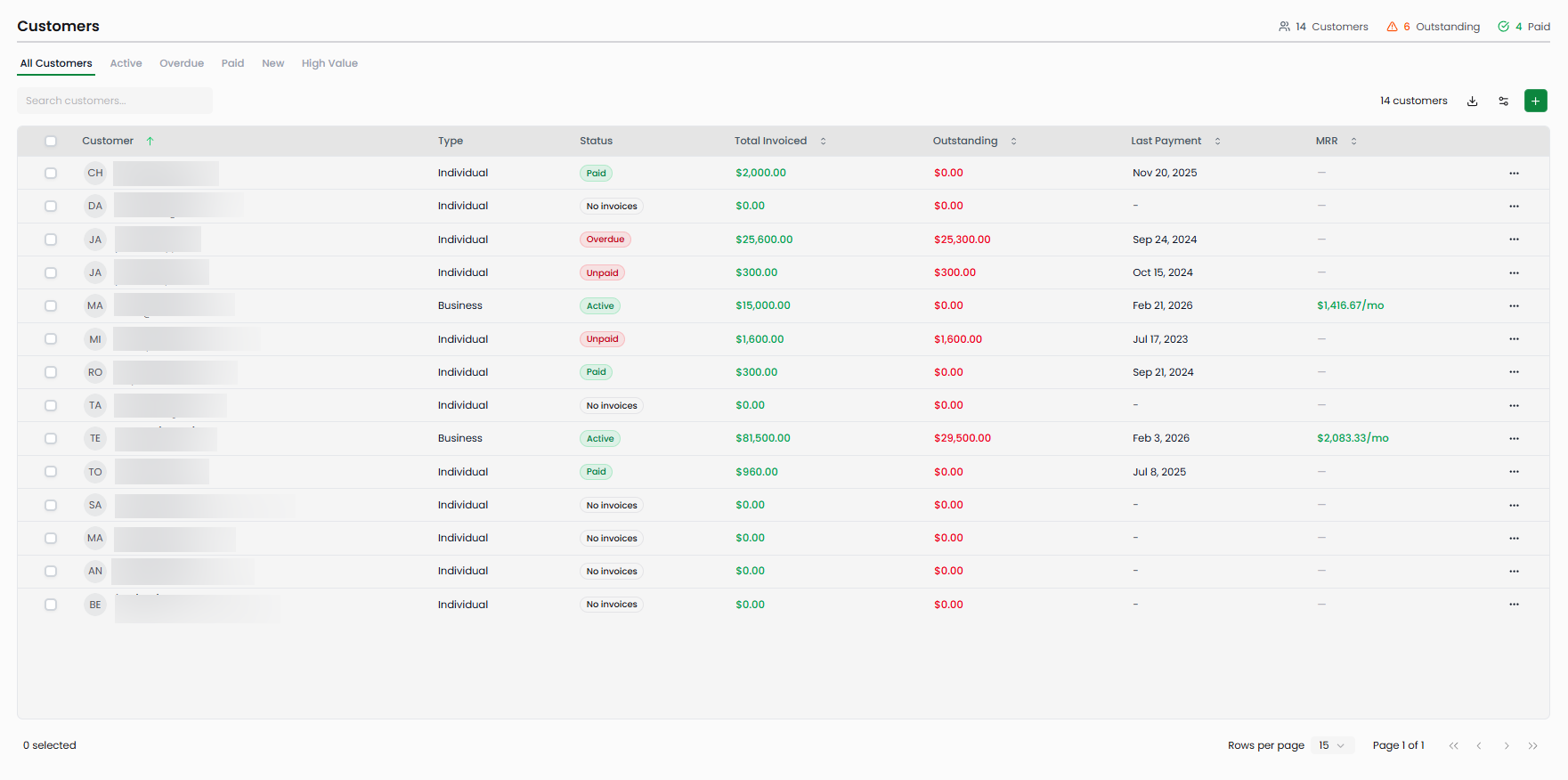
Three summary stats appear in the top-right corner of the page. Customers shows the total number of customer records in your account. Outstanding shows the number of customers who have at least one unpaid balance. Paid shows the number of customers whose current status is Paid.
Filtering by Status
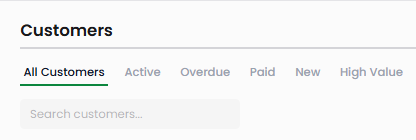
Five filter tabs across the top of the table let you narrow the customer list by status.
All Customers shows every customer record regardless of status.
Active shows customers with recent payment activity.
Overdue shows customers who have at least one invoice with an outstanding balance past its due date.
Paid shows customers whose invoices are fully settled with no remaining balance.
New shows recently added customers based on when they were created in the system.
High Value filters for your most significant customers based on total invoiced amount or revenue contribution.
The Customer Table
The table displays one row per customer. The columns give you a quick read on their financial relationship with your business.
Customer
Displays the customer's name and primary email address. An avatar with initials appears on the left. Click anywhere on the row or use the three-dot menu to open the customer detail panel.
Type
Shows whether the customer is classified as an Individual or a Business. This is set when the customer is created and can be updated from the detail panel.
Status
The status badge reflects the current payment state of the customer's invoices. Active means the customer has an active subscription. Paid means all invoices are settled. Overdue means at least one invoice has an outstanding balance past its due date — the customer has made some payment but a balance remains. Unpaid means invoices have been issued but no payment has been received. No invoices means the customer record exists but no invoices have been created yet.
Total Invoiced
The cumulative dollar amount of all invoices ever issued to this customer, regardless of payment status.
Outstanding
The total amount currently owed by this customer across all unpaid invoices. This includes both overdue amounts and invoices not yet past due. A value of $0.00 in green means the customer has no open balance.
Last Payment
The date of the most recent payment received from this customer. A dash indicates no payment has been received yet.
MRR
Monthly Recurring Revenue attributed to this customer, calculated from active recurring invoices. Only customers with active subscriptions or recurring billing show a value here. Customers without recurring revenue show a dash.
Column Customization
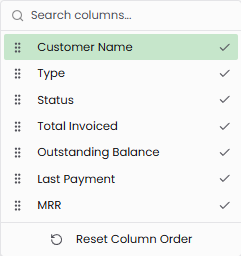
Click the column settings icon in the toolbar to control which columns appear in the table. You can show or hide Customer Name, Type, Status, Total Invoiced, Outstanding Balance, Last Payment, and MRR. Drag the dot-grid icon next to any column name to reorder it. Your column configuration persists between sessions. Click Reset Column Order to return to the default layout.
Searching Customers
The search bar at the top of the table filters customers by name as you type. This is useful when you have a large customer list and need to jump directly to a specific account.
Adding a Customer
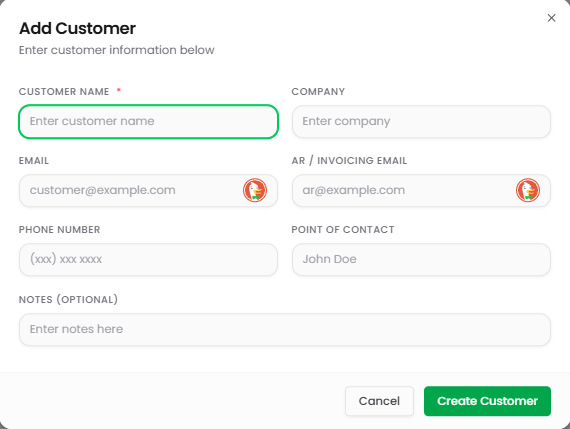
Click the green + button in the toolbar to open the Add Customer modal. Fill in the customer details and click Create Customer.
Customer Name is required. All other fields are optional.
Company lets you associate the customer with a business name if they represent an organization.
Email is the customer's primary contact email.
AR / Invoicing Email is an alternate address specifically for accounts receivable communications, such as routing invoices to a billing department rather than an individual contact.
Phone Number and Point of Contact are optional fields for your reference.
Notes lets you add any internal context about the customer that doesn't belong in the structured fields.
After creating a customer, you can link them to invoices and subscriptions from the Invoice and Subscriptions creation flows.
Customer Detail Panel
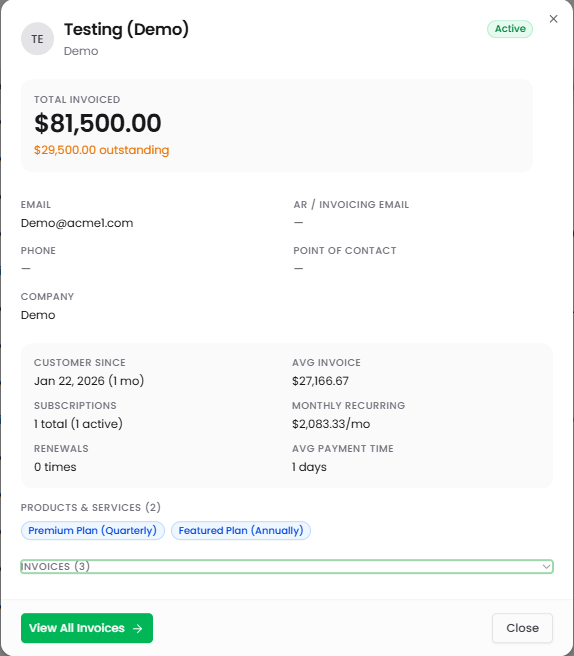
Clicking on a customer row opens a detail panel that summarizes their full relationship with your business.
The header shows the customer's name, avatar initials, company (or "No company" if not set), and their current status badge.
Total Invoiced displays the lifetime invoiced amount prominently at the top of the panel.
The contact section shows Email, AR/Invoicing Email, Phone, Point of Contact, and Company as entered during setup. Fields not yet filled in display a dash.
A metrics row shows four key statistics about the customer relationship.
Customer Since shows the date of their first invoice and how many months ago that was (for example, "Nov 20, 2024 (15 mo)").
Avg Invoice shows the average dollar amount across all invoices issued to this customer.
Subscriptions shows the total number of subscriptions ever created for this customer and how many are currently active (for example, "1 total (0 active)").
Renewals shows how many times a subscription has renewed for this customer.
The Products & Services section lists all products or subscriptions ever associated with this customer, including the plan name, billing interval, and amount.
The Invoices section at the bottom of the panel lists all invoices for this customer. Click View All Invoices to navigate to the Invoices page filtered to show only this customer's invoices.
Managing Customer Records
The three-dot menu on each customer row provides three options. View Details opens the customer detail panel. Edit opens a form where you can update any of the customer's information. Delete permanently removes the customer record. You can also edit a customer directly from within the detail panel.
Exporting Customers
Click the download icon in the toolbar to export your customer list. You can export as CSV, XLSX, or PDF. The export reflects whichever tab or filter is currently active — if you're viewing the Overdue tab, only overdue customers will be included in the file.
Why It Matters
The Customers page connects your invoicing history, subscription revenue, and outstanding receivables in a single view. Rather than calculating a customer's total value manually or searching across individual invoices, you can see at a glance who your highest-value customers are, who owes you money, and who is approaching overdue. For founders managing cash flow, this visibility helps you prioritize collection efforts, understand your MRR composition by customer, and have more informed conversations when a payment issue arises.